
 ShanBabar
Every week I audit WordPress websites for business owners and freelancers who can’t figure out why their site isn’t ranking. And every single week, I see the same ten WordPress SEO mistakes show up — silently killing organic traffic, wasting ad spend, and costing real money.
Some of these mistakes take five minutes to fix. Others require a proper technical overhaul. But all of them are completely avoidable once you know what to look for.
I’ve compiled this list from hundreds of real WordPress SEO audits. Whether you’re a business owner managing your own site or a developer building for clients, this guide will show you exactly what’s broken and how to fix it.
Table of Contents
WordPress SEO Mistake 01 No XML Sitemap Submitted to Google
This is the most basic SEO task on the planet — and at least 30% of the sites I audit have never done it. An XML sitemap tells Google exactly which pages exist on your website and how often they change. Without it, Google has to discover your content by crawling links alone, which means pages get missed, indexed late, or never found at all.
How to fix it
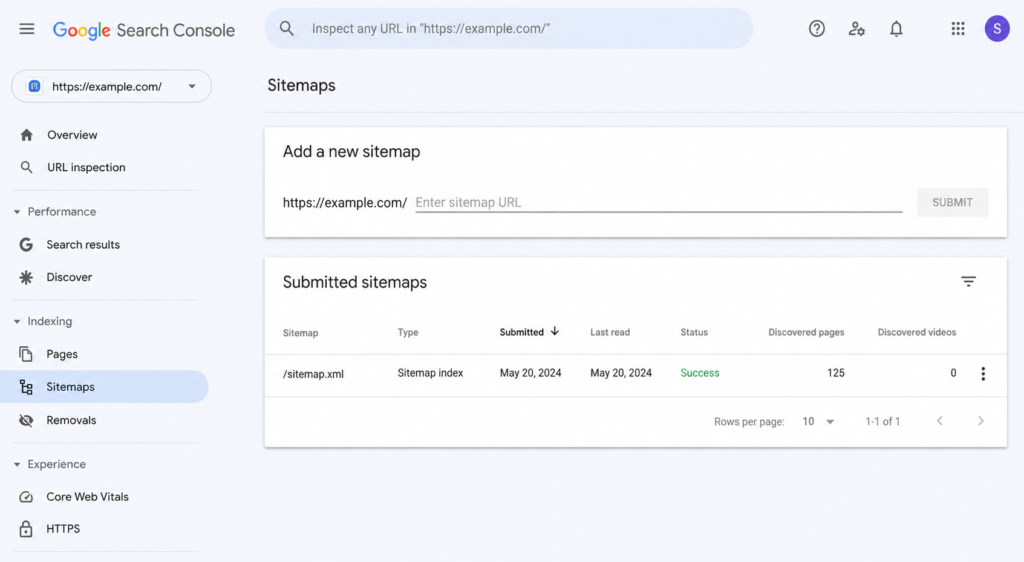
If you’re using RankMath, your sitemap is automatically generated at yourdomain.com/sitemap_index.xml. For Yoast SEO, it lives at yourdomain.com/sitemap_index.xml as well. Once you have the URL, go to Google Search Console → Sitemaps → Add a new sitemap, paste it in, and hit submit.
- Install RankMath or Yoast SEO if you haven’t already
- Enable XML sitemap generation in plugin settings
- Go to Google Search Console and submit the sitemap URL
- Check back in 48 hours — GSC will show how many URLs were indexed
⚡ Pro tip: Exclude thank-you pages, login pages, and tag/archive pages from your sitemap. Only submit pages that have real SEO value. In RankMath: Settings → Sitemap → choose which post types to include.
WordPress SEO Mistake 02 Missing or Duplicate Meta Titles & Descriptions
Your meta title is the single most important on-page SEO element. It tells Google what your page is about and it’s the first thing a user sees in search results. Yet I regularly find WordPress sites where every page shares the same generic title — usually just the site name — or worse, the meta description is completely empty and Google writes its own.
Duplicate titles across multiple pages are equally damaging. When Google sees two pages with the same title, it doesn’t know which one to rank and often chooses incorrectly — or ignores both.
How to fix it
Open RankMath or Yoast on every key page and write a unique meta title (50–60 characters) that includes your target keyword near the front. Write a meta description (140–155 characters) that describes the page and includes a soft call to action.
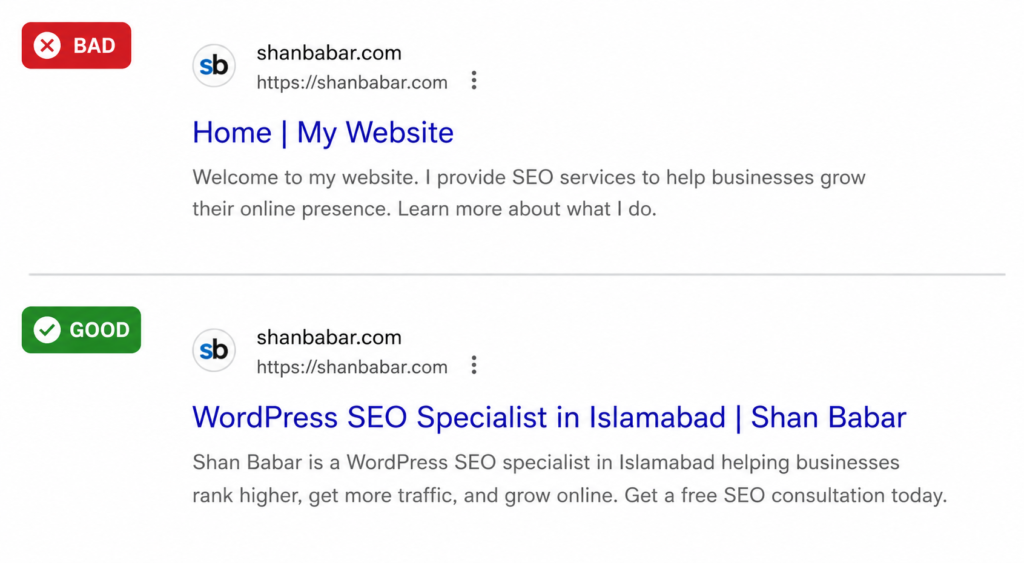
❌ BAD: Home | Shan Babar (11 chars — wasted opportunity)
✅ GOOD: WordPress SEO Specialist Islamabad | Shan Babar (47 chars — keyword-rich, location-specific)
Use RankMath’s Bulk Edit feature under RankMath → Status & Tools → Bulk Edit Titles to audit all pages at once and spot duplicates immediately.
WordPress SEO Mistake 03 Slow Page Speed & Failing Core Web Vitals
Google confirmed Core Web Vitals as a ranking factor in 2021 and has only strengthened that signal since. In 2026, a WordPress site scoring below 50 on PageSpeed mobile is actively being penalised in search rankings. I’ve taken sites from a PageSpeed score of 34 all the way to 91 — and the organic traffic gains that follow are immediate and measurable.
The three Core Web Vitals you need to know are LCP (Largest Contentful Paint — how fast the main content loads), FID/INP (responsiveness to user interaction), and CLS (Cumulative Layout Shift — how much the page jumps around while loading).
How to fix it
- Install WP Rocket — the single best WordPress caching plugin. Handles lazy loading, CSS minification, and database optimisation in one click.
- Convert images to WebP — use ShortPixel or Imagify to bulk convert all images. WebP files are 25–35% smaller than JPEGs.
- Limit plugins to under 20 — every active plugin adds load time. Audit your plugins list and deactivate anything you don’t use weekly.
- Use a fast host — shared hosting on GoDaddy or Hostinger is the single biggest speed killer I see. Cloudways or SiteGround make an immediate difference.
- Enable a CDN — Cloudflare free tier is enough for most sites and cuts load times by 30–50% for visitors outside your server’s location.
04 Images Not Optimised — Wrong Format & Missing Alt Text
I have seen WordPress sites with 8MB PNG files on the homepage. One image. Eight megabytes. On a page that should load in under two seconds. Unoptimised images are the number one cause of poor PageSpeed scores and they’re completely unnecessary — a properly compressed WebP image looks identical to the human eye and loads in a fraction of the time.
Alt text is the other half of this problem. Alt text is what Google reads when it “looks” at your image. It’s also what screen readers use for accessibility. Leaving it blank is a missed SEO opportunity on every single image on your site.
| Format | Typical Size | SEO Use Case | Recommendation |
|---|---|---|---|
| PNG | 1–10 MB | Screenshots, logos | Convert to WebP |
| JPEG | 200 KB–2 MB | Photos, headers | Convert to WebP |
| WebP | 50–200 KB | All images | ✅ Use this always |
| SVG | 1–20 KB | Icons, logos | ✅ Best for vector |
How to fix it
Install ShortPixel (free for 100 images/month) or Imagify and run a bulk optimisation on your entire media library. Both plugins convert to WebP automatically. For alt text, go to Media Library → List View, click each image, and add a descriptive alt text that includes your keyword naturally — don’t just stuff the keyword, describe what’s actually in the image.
05 WordPress Set to “Discourage Search Engines” — Accidentally
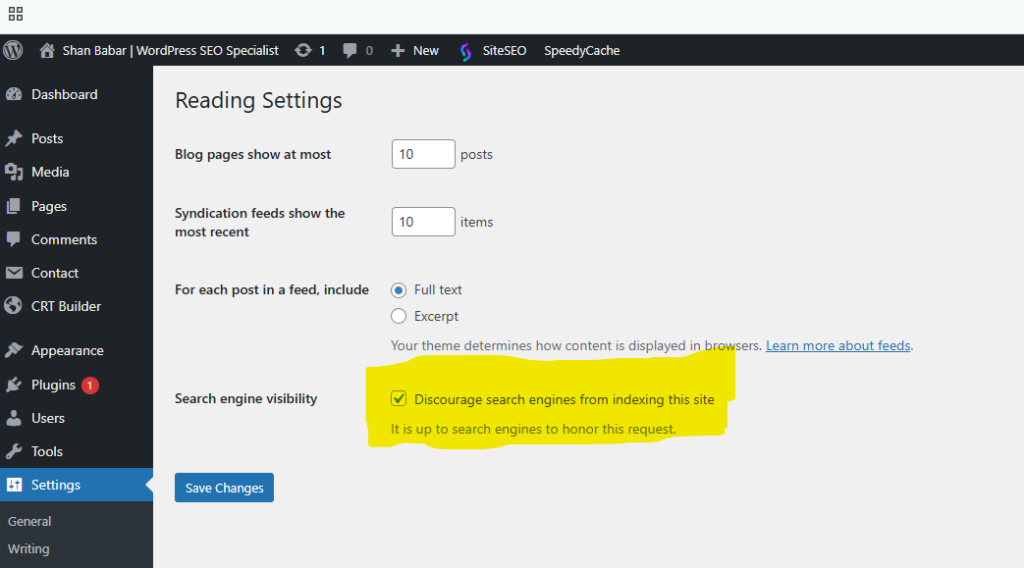
This one always gets a reaction when I show it to clients. In WordPress, there’s a single checkbox under Settings → Reading → Search engine visibility that — when ticked — tells Google to stay away from your entire website. It’s designed to be used during development so your half-built site doesn’t get indexed.
The problem? I find it ticked on live websites all the time. Sometimes it was left on after launch. Sometimes someone ticked it accidentally. Either way, if this box is checked, your site is essentially invisible to Google no matter how good your SEO is.
How to fix it
Go to WordPress Admin → Settings → Reading. Under “Search engine visibility” — make absolutely sure the checkbox labelled “Discourage search engines from indexing this site” is unchecked. Save changes. Then submit your sitemap to Google Search Console to prompt a fresh crawl.
⚡ Check this first on any website you take over from another developer. I’ve seen sites spend months on SEO work while this single checkbox was blocking everything.
06 No Schema Markup / Structured Data
Schema markup is code you add to your pages that tells Google exactly what type of content it’s looking at — a local business, a blog post, a product, a FAQ, a review. When Google understands your content type, it can display rich results in search — star ratings, FAQ dropdowns, breadcrumbs, and more. These rich results take up more space on the page, attract more clicks, and signal authority to Google’s algorithm.
Most WordPress sites have zero schema markup. This means they’re competing for plain blue links while their competitors with schema are getting enhanced listings that stand out visually.
How to fix it
- RankMath adds basic schema automatically (Article, Website, BreadcrumbList) — make sure Schema is enabled in RankMath settings.
- For local businesses: add LocalBusiness schema with your name, address, phone, opening hours, and coordinates.
- For blog posts: add Article schema with author, publish date, and featured image.
- For FAQs: use FAQPage schema — this can give you FAQ dropdowns directly in Google results, doubling your search result real estate.
- Test your schema at search.google.com/test/rich-results after adding it.
07 Broken Internal Links & Redirect Chains
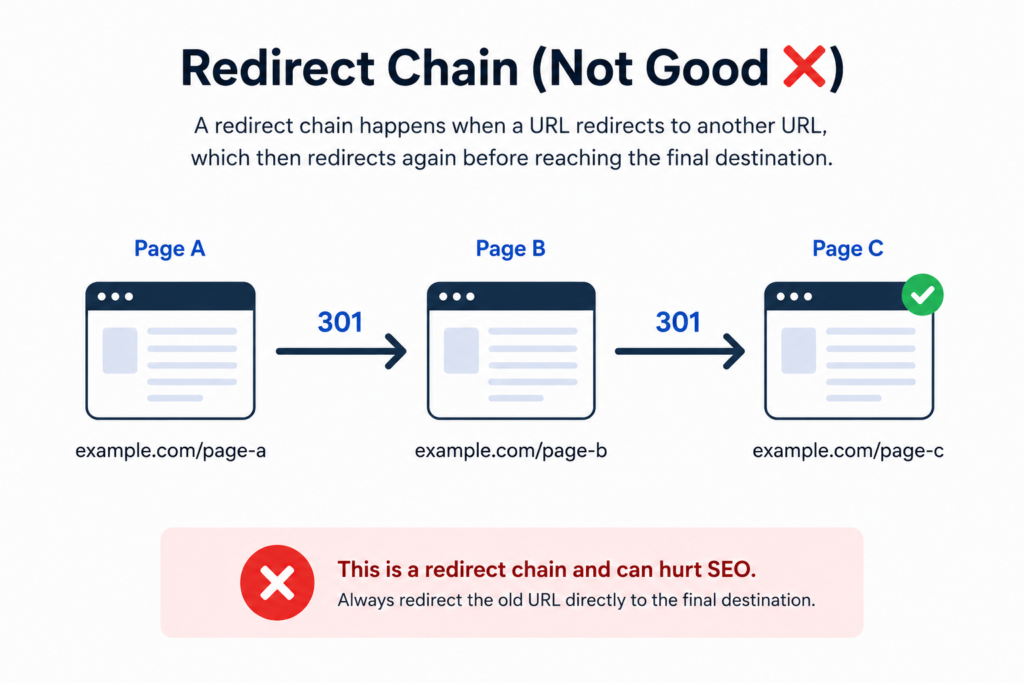
Internal links are how Google discovers and understands the structure of your website. They pass “link equity” — SEO authority — from high-value pages to supporting pages. When internal links are broken (pointing to pages that no longer exist) or trapped in redirect chains (A redirects to B which redirects to C which redirects to D), that link equity bleeds away and Google’s crawl budget gets wasted.
I routinely find sites with dozens of broken links that have accumulated over years of content updates, page deletions, and URL changes — none of which were followed up with proper redirects.
How to fix it
Download Screaming Frog SEO Spider (free for up to 500 URLs) and crawl your site. Filter by Response Code 404 to find all broken links. For each broken link, either update the link to point to the correct page, or set up a 301 redirect using the Redirection WordPress plugin. For redirect chains — anywhere that has more than one redirect hop — fix the source link to point directly to the final destination URL.
08 Keyword Cannibalization — Multiple Pages Fighting Each Other
Keyword cannibalization happens when two or more pages on your site target the same keyword. Instead of one strong page ranking for “WordPress SEO services,” you have three weaker pages all competing against each other — and all competing against themselves in Google’s eyes. Google gets confused about which page to rank and often ranks the wrong one, or ranks none of them well.
This is extremely common on sites with blogs, because business owners write posts on topics similar to their service pages without realising they’re creating competition for themselves.
“Having ten weak pages targeting the same keyword is worse than having one strong page. Google rewards focus and depth — not repetition.”
— Shan Babar
How to fix it
Use Google Search Console → Performance → Search Results and filter by keyword to see which pages are appearing for the same queries. Then decide: which page is the one you most want to rank? That becomes the “canonical” page. Consolidate thin competing pages into it (using 301 redirects for the deleted pages), add internal links pointing to the canonical page from all related content, and add a rel="canonical" tag on any page you don’t want competing.
09 Not Using HTTPS or Mixed Content Errors
Google confirmed HTTPS as a ranking signal back in 2014. In 2026, a non-HTTPS website gets a “Not Secure” warning in Chrome — which destroys user trust and tanks your click-through rate from search results. Most modern hosts provide free SSL certificates via Let’s Encrypt, so there’s no excuse for running HTTP in 2026.
But just having SSL installed isn’t enough. Mixed content is the sneaky follow-up problem — where your site is technically HTTPS but still loads some resources (images, scripts, stylesheets) over HTTP. This triggers browser security warnings and can still impact rankings.
How to fix it
- Install SSL via your hosting dashboard (most hosts do this in one click)
- Install the Really Simple SSL WordPress plugin to automatically redirect HTTP to HTTPS
- Use Why No Padlock (whynopadlock.com) to scan for mixed content issues
- Fix mixed content by updating database URLs — use Better Search Replace plugin to swap all
http://yourdomain.comreferences tohttps://yourdomain.comin the database
10 Ignoring Google Search Console Data
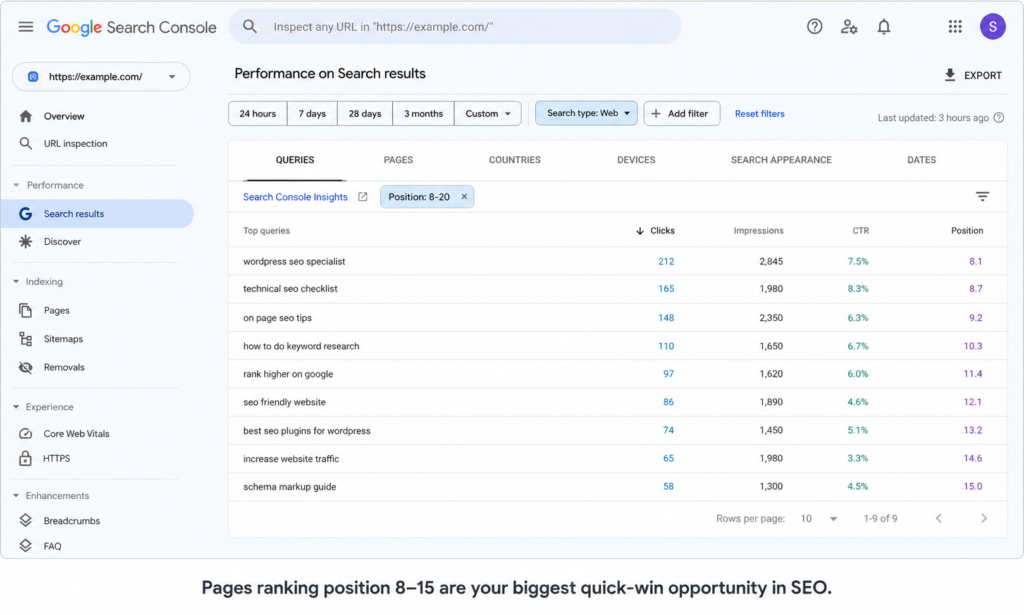
Google Search Console is free. It shows you exactly which keywords your site ranks for, which pages get the most impressions, where you’re on page 2 of Google (the biggest quick-win opportunity in SEO), and any technical issues Google has discovered. It is the single most valuable SEO tool available — and most website owners have never opened it.
The biggest missed opportunity I see in GSC is pages ranking on position 8–15 — the bottom of page one and the top of page two. These pages are close to ranking well. A focused round of on-page optimisation, a few extra internal links, and maybe one or two external links can push them onto the first five results. That jump from position 10 to position 4 can double or triple your organic traffic from that keyword.
How to fix it
- Set up Google Search Console at search.google.com/search-console and verify ownership via DNS or HTML tag
- Submit your sitemap (back to Mistake #1)
- Check Coverage report weekly for crawl errors, excluded pages, and indexing issues
- Check Performance → Queries monthly — filter by position 8–20 to find your quick-win keywords
- Check Core Web Vitals report for page experience issues flagged by Google directly
Quick Reference: All 10 Fixes at a Glance
| # | Mistake | Tool to Fix It | Time to Fix |
|---|---|---|---|
| 01 | No XML Sitemap | RankMath + GSC | 10 mins |
| 02 | Missing / Duplicate Meta Tags | RankMath Bulk Edit | 1–2 hours |
| 03 | Slow Page Speed | WP Rocket + Imagify | 2–4 hours |
| 04 | Unoptimised Images / No Alt Text | ShortPixel + Media Library | 1–3 hours |
| 05 | Search Engine Blocked (Checkbox) | WordPress Settings → Reading | 2 mins |
| 06 | No Schema Markup | RankMath Schema + Rich Results Test | 2–4 hours |
| 07 | Broken Links & Redirect Chains | Screaming Frog + Redirection Plugin | 2–6 hours |
| 08 | Keyword Cannibalization | GSC Performance + Canonical Tags | 3–6 hours |
| 09 | No HTTPS / Mixed Content | Really Simple SSL + Better Search Replace | 30 mins |
| 10 | Ignoring Google Search Console | GSC (free) | Ongoing — 30 mins/week |
Final Thoughts
None of these mistakes require an advanced degree in SEO. But they do require knowing where to look and what to prioritise. Most WordPress site owners are too close to their own content to spot these issues — they’re focused on writing posts and running their business, not auditing crawl errors and redirect chains.
If you’ve read through this list and counted three or more mistakes that apply to your site, you’re not alone. The good news: every single one of these is fixable, and fixing even the first three will produce measurable improvements in your rankings within 30–60 days.
If you’d rather have a professional handle the audit and fixes, I offer a free top-3 issue review — send me your URL and I’ll tell you the biggest problems I find before we discuss anything else.
Get a Free WordPress SEO Audit
Send me your website URL. I’ll identify your top 3 SEO issues — for free, no strings attached. Contact Me on Upwork →
Frequently Asked Questions
How do I know if my WordPress site has SEO mistakes?
The fastest way is to run a free crawl with Screaming Frog (up to 500 URLs free) and check your Google Search Console for coverage errors. You can also use the free version of Ahrefs Webmaster Tools or SEMrush’s Site Audit to get an automated health score.
Which WordPress SEO mistake is most damaging?
In my experience, the most damaging is Mistake #5 — having the “Discourage search engines” checkbox ticked. It’s the only one that makes your entire SEO effort completely invisible to Google. After that, slow page speed (Mistake #3) has the broadest negative impact across rankings, user experience, and conversion rates.
Do I need to hire an SEO specialist or can I fix these myself?
Mistakes #1, #2, #5, and #9 are straightforward enough for any WordPress user to fix by following this guide. Mistakes #3, #7, #8, and the schema work in #6 benefit significantly from professional help — getting them wrong can create new problems. If your site earns revenue, the ROI on a professional SEO audit almost always pays for itself within two to three months.
How long does it take to fix WordPress SEO issues?
Simple fixes like submitting a sitemap or enabling HTTPS take under 30 minutes. A full technical SEO audit and remediation for a site with 50–200 pages typically takes 8–20 hours of professional work, spread across 1–2 weeks.
